¶ Getting Started
This guide begins after you have downloaded one of the ISO files from the main page.
Before continuing, make sure Secure Boot and CSM are both disabled in your UEFI settings.
¶ Preparing Your Installation Media
To install PikaOS, you will need to write the ISO to a USB drive. Choose the method that matches your device or operating system.
¶ Linux Methods
- Popsicle
- Fedora Media Writer
- dd via terminal
- GNOME Disk Utility listed as Disks in most application menus
¶ Windows Method
¶ Cross Platform Tools
- Ventoy
Works correctly as long as the VENTOY partition and PikaOS ISO names are not changed. - BalenaEtcher
Recommended for macOS users and also available on Windows and Linux.
¶ Android Method
After writing the ISO to your USB drive, reboot your system and select the USB device from your boot menu.
¶ Booting the Installer
Once the system begins booting from the USB, wait for the bird logo to appear.
Press Enter to load the installer environment.
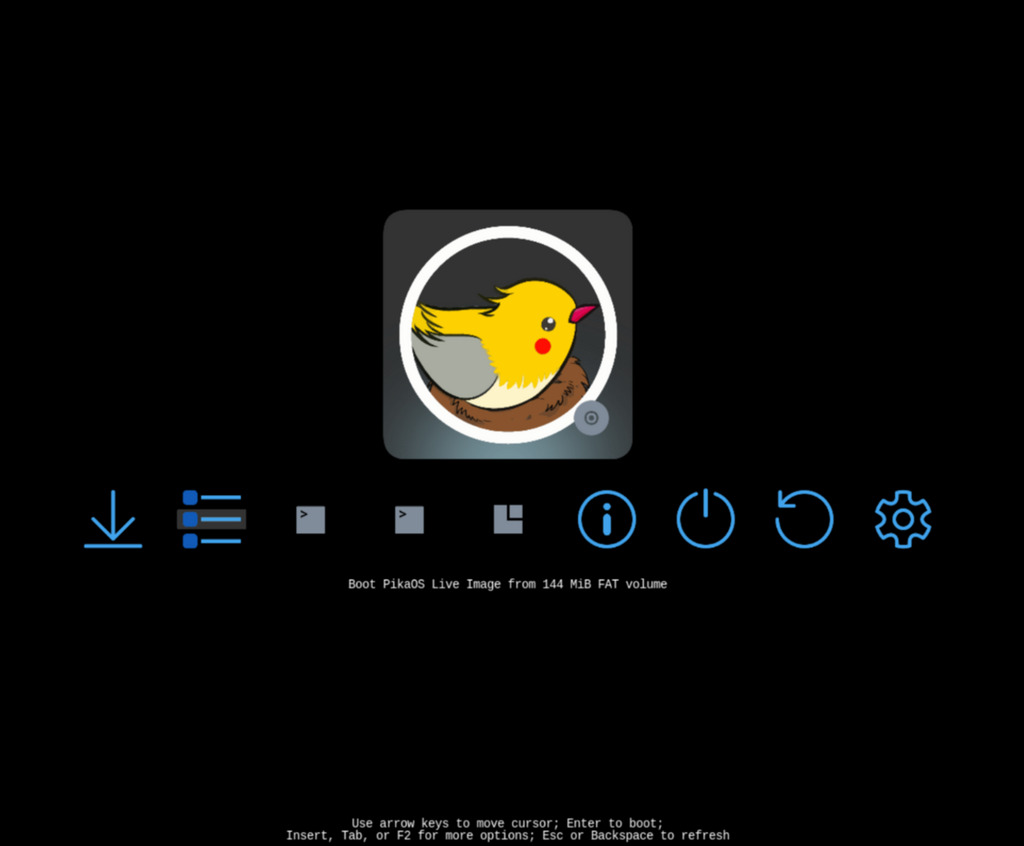
After a short loading period, the installer will appear.
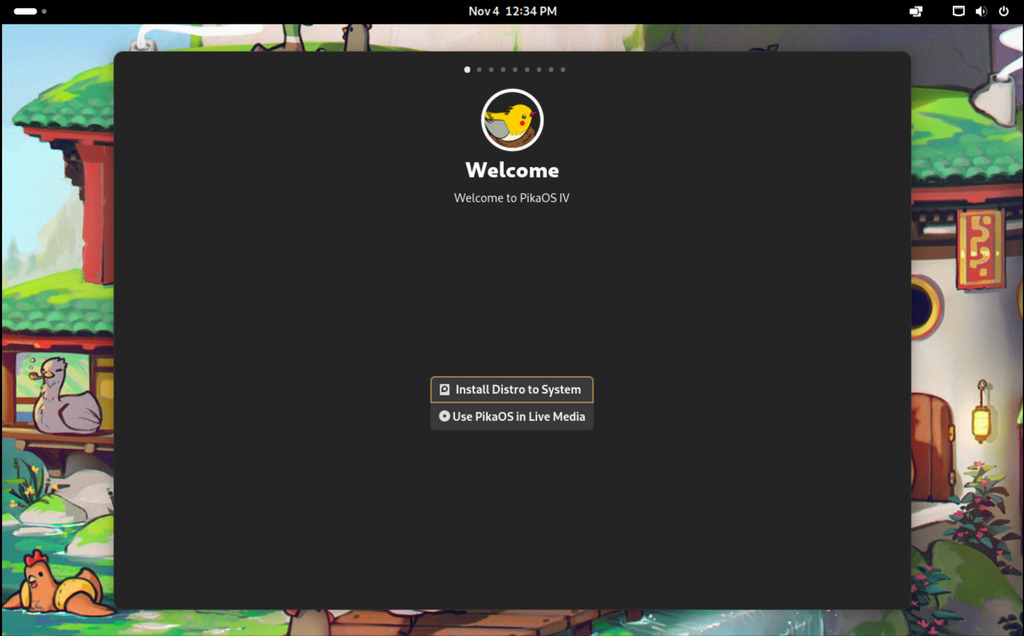
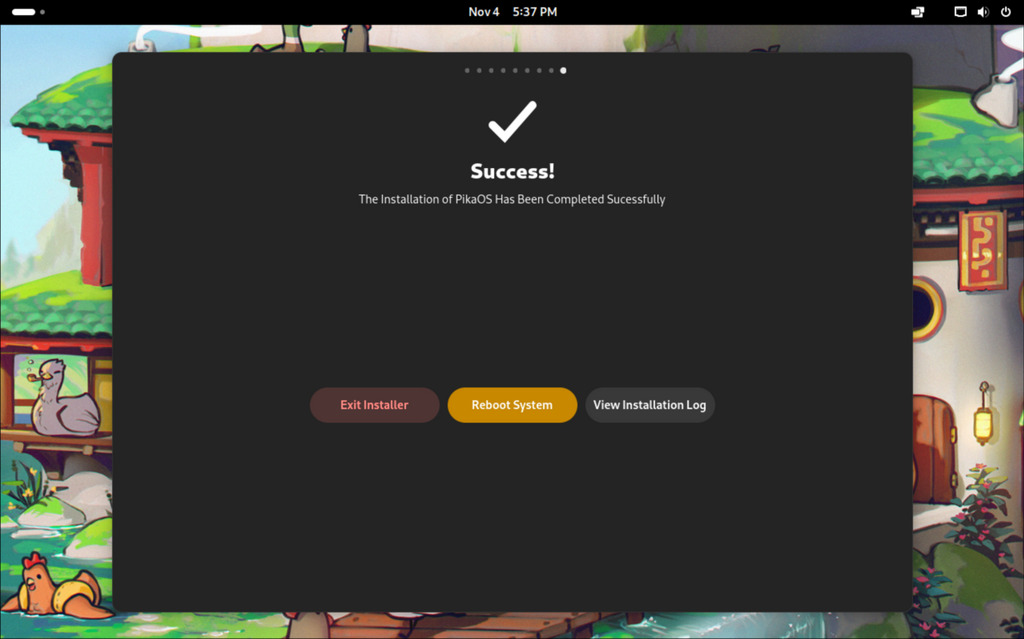
Select Install Distro to System and follow the guided steps until the process completes.
When prompted, reboot your system.
¶ Important Information for MSI Systems
If you are installing PikaOS on an MSI motherboard or laptop, open Advanced Options in the boot menu and choose
BOOTX64 Mode (MSI Compatibility Mode).
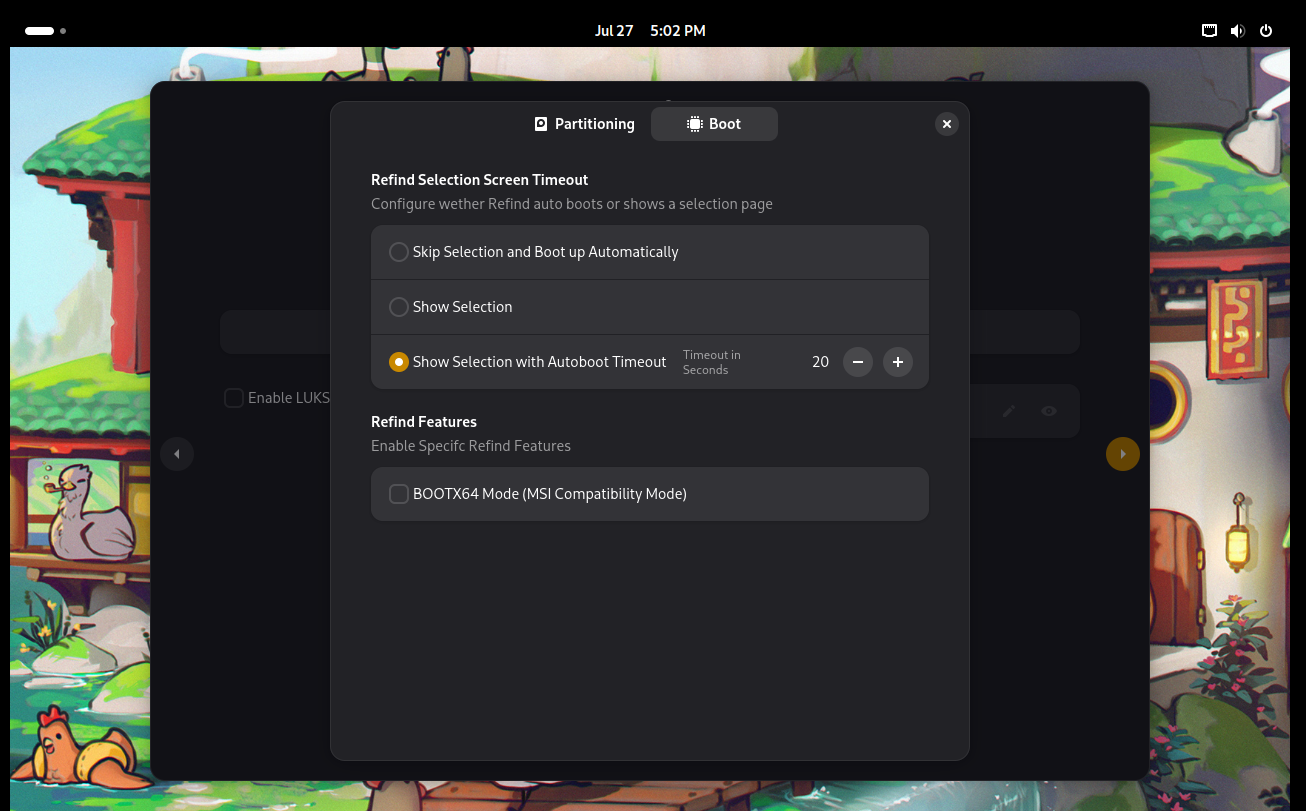
When installation finishes, reboot as instructed.
¶ First Boot
After rebooting, press Enter at the bird logo to start your new system.
Once the desktop loads, the first boot wizard will appear automatically.
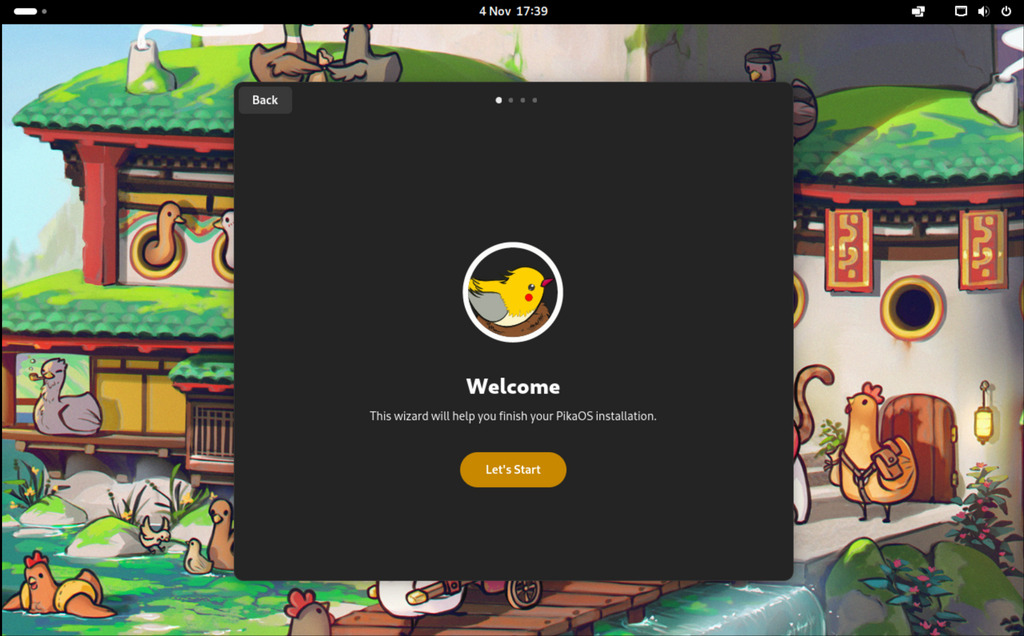
Select Lets Start and complete the setup steps.
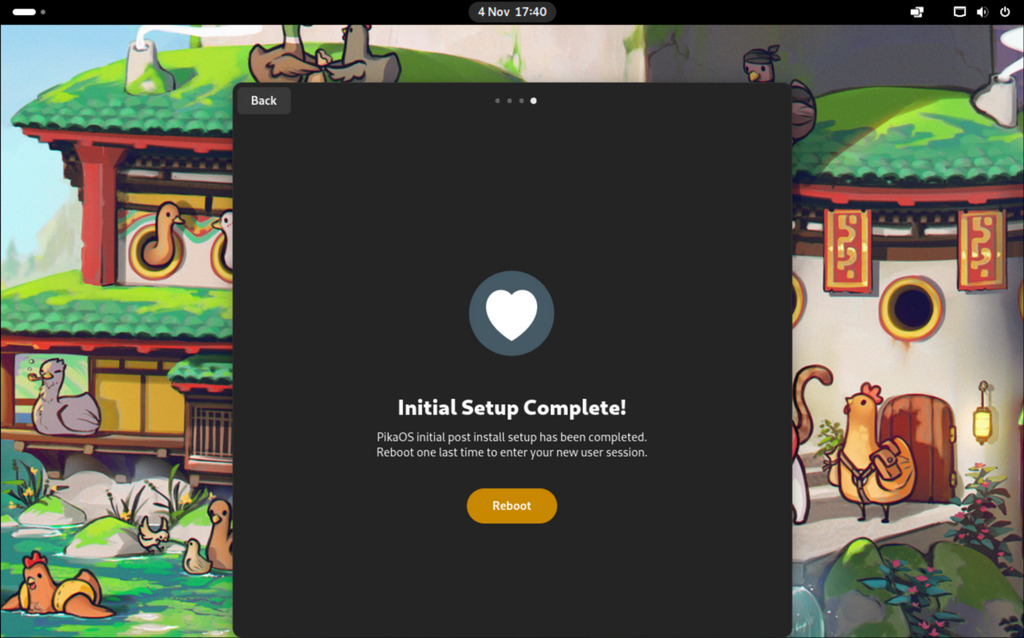
Reboot when the wizard instructs you to.
¶ Welcome to PikaOS
Your installation is now complete.
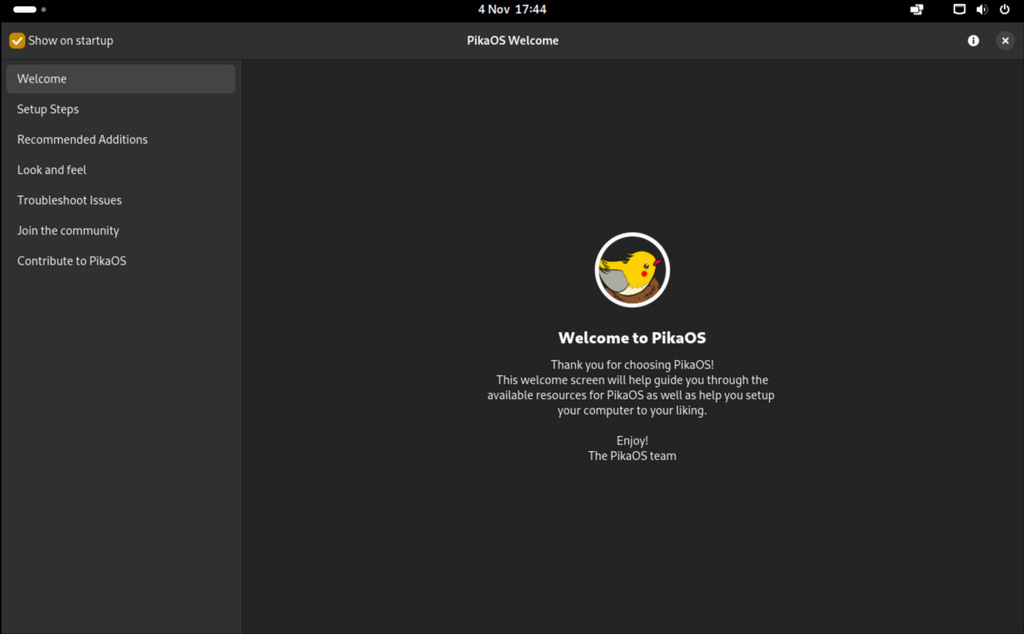
After the final reboot, you will be greeted by the Pika Hub application, which will guide you through the next steps of using your new system.