¶ Install Otter-Shell
- First, install the core shell.
- Install wtype to handle toggling and ensure the On-Screen Display (OSD) functions correctly on Niri.
pikman i otter-shell
pikman i wtype
¶ Disable the Hypridle Service
To prevent conflicts with Otter-Shell's power management, you must stop, disable, and mask the Hypridle service.
killall hypridle
systemctl --user disable --now hypridle.service
systemctl --user mask hypridle.service
¶ Backup Configuration
Before making changes, back up your existing configuration file located at:~/.config/niri/config.kdl
¶ Deactivate Default Modules
Edit your ~/.config/niri/config.kdl remove or comment out the following lines to disable the default Pikabar/Noctalia shell components:
| Remove or // |
|---|
start-at-startup noctalia-shell/pikabar |
spawn-at-startup "swww-daemon" |
spawn-at-startup "/usr/bin/mate-polkit" |
spawn-at-startup "systemctl" "--user" "enable" "--now" "hypridle" |
¶ Add the Otter-Shell Autostart Modules
Add these lines to your config.kdl to ensure the Otter-Shell modules start at boot:
Autostart these for a working desktop:
| Daemon | Required | Purpose |
|---|---|---|
spawn-at-startup otter-bar |
Recommended | Status bar, system tray, workspace indicator |
spawn-at-startup otter-wallpaper |
Recommended | Desktop background |
spawn-at-startup otter-notifications |
Recommended | notify-send and app notifications |
spawn-at-startup otter-osd |
Recommended | Volume/brightness/lock-key overlays |
spawn-at-startup otter-idle |
Recommended | Screen lock and DPMS on idle |
spawn-at-startup otter-polkit |
Recommended | Authentication for privileged actions |
spawn-at-startup otter-clip daemon |
Recommended | Clipboard history |
spawn-at-startup otter-theme-gen |
Optional | Wallpaper-reactive color layer (use with otter-wallpaper) |
| spawn-at-startup otter-search | Optional | File and content search (launcher file / grep modes) |
| spawn-at-startup otter-weather --watch 900 --write-cache | Optional | Bar weather widget data |
| spawn-at-startup otter-jade | Optional | Desktop pet |
| spawn-at-startup otter-transcribe | Optional | Speech transcription (needs otter-shell-extras) |
| spawn-at-startup otter-assist | Optional | Local AI backend for Otter Assistant (otter-shell-extras) |
¶ Configure keybinds
Configure your primary navigation and session shortcuts. You can adjust these keys to suit your preference.
The following keybinds can be used as an example.
¶ Launcher
Adjust the Pikabar or noctalia app launcher with the new otter-launcher keybind
Mod+D { spawn "sh" "-c" "pkill otter-launcher || otter-launcher"; }
¶ Otter-Logout
Ctrl+Alt+Delete { spawn "otter-logout"; }
¶ Otter-Lock
Mod+Alt+L allow-when-locked=true { spawn "sh" "-c" "otter-lock"; }
¶ Otter-OSD:
Add the following keybinds to manage system indicators and media controls:
¶ CapsLock
Caps_Lock allow-when-locked=true { spawn "sh" "-c" "otter-osd caps-lock && wtype -k Caps_Lock"; }
¶ NumLock
Num_Lock allow-when-locked=true { spawn "sh" "-c" "otter-osd num-lock && wtype -k Num_Lock"; }
¶ Audio
XF86AudioRaiseVolume allow-when-locked=true { spawn "otter-osd" "volume-up" "5"; }
XF86AudioLowerVolume allow-when-locked=true { spawn "otter-osd" "volume-down" "5"; }
XF86AudioMute allow-when-locked=true { spawn "otter-osd" "volume-mute-toggle"; }
¶ Brightness
XF86MonBrightnessUp allow-when-locked=true { spawn "sh" "-c" "brightnessctl set +5% && otter-osd brightness-up"; }
XF86MonBrightnessDown allow-when-locked=true { spawn "sh" "-c" "brightnessctl set 5%- && otter-osd brightness-down"; }
¶ Mediakeys
XF86AudioPlay allow-when-locked=true { spawn "playerctl" "play-pause"; }
XF86AudioNext allow-when-locked=true { spawn "playerctl" "next"; }
XF86AudioPrev allow-when-locked=true { spawn "playerctl" "previous"; }
XF86AudioStop allow-when-locked=true { spawn "playerctl" "stop"; }
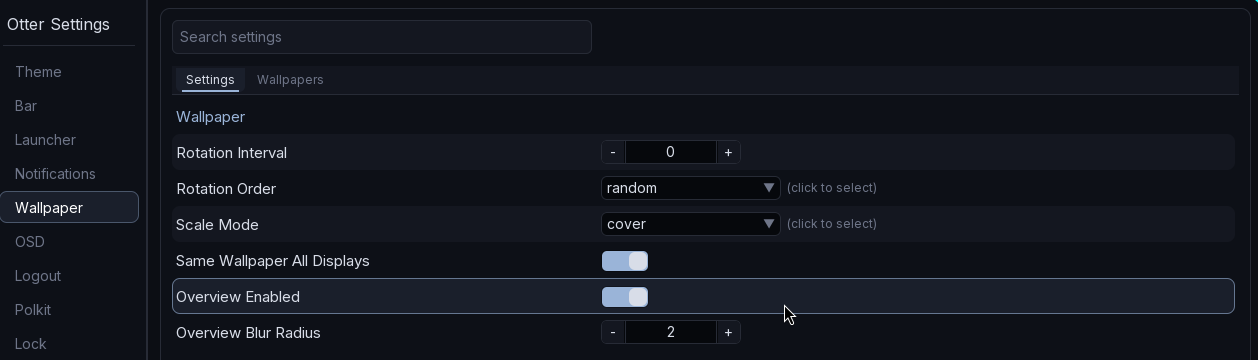
¶ Wallpaper and background blur
To ensure the wallpaper layer and overview blur render correctly, adjust the layer rule like this:
layer-rule {
match namespace="^otter-wallpaper*"
place-within-backdrop true
}
To enable the blur you must adjust the settings in the Otter-Settings application.