⚠️ Before you start: Partitioning your disk carries a risk of data loss. Back up your important files before proceeding.
¶ Prepare Windows
- Open the Windows Disk Partition Manager (search for "Create and format hard disk partitions" in the Start menu).
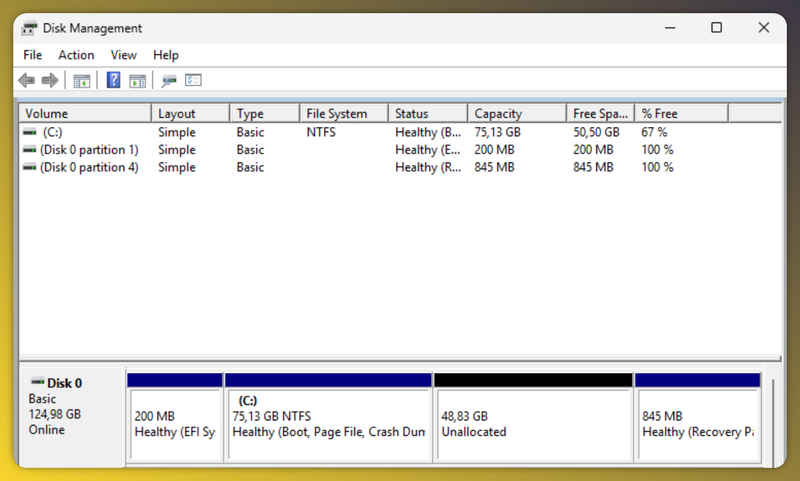
- Rightclick and shrink your C: volume
Free up space for PikaOS. Decide how much space you want to dedicate to PikaOS and shrink the volume by that amount.
In the example below we shrunk the C: drive 50GB for PikaOS and is now an Unallocated partition
- Close the partition manager and shut down Windows.
- Boot into your PikaOS live USB/medium.
¶ Start the PikaOS Installer
¶ Required BIOS Settings
Before installing, make sure your BIOS/UEFI is configured correctly:
| Setting | Value |
|---|---|
| Secure Boot | Disabled |
| CSM (Compatibility Support Module) | Disabled |
| Boot Mode | UEFI (must be enabled) |
Once set, boot into your PikaOS live medium.
- From the live desktop, select Install Distro to System.
- Choose your language, keyboard layout, and timezone.
- When asked how to partition the drive, select Manually Partition the Drive.
- Click Open Disk Partitioning Utility in the bottom-left corner.
¶ Partition the Disk
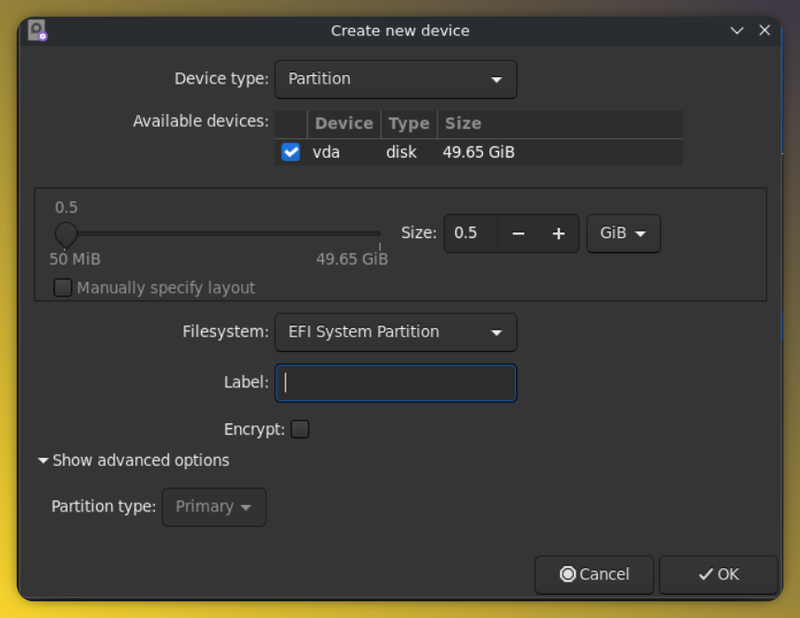
In the Disk Partitioner, right-click your free space (the space you freed up from Windows) and select New to create each of the following partitions, in order:
¶ 1. EFI System Partition
- Size:
512 MiB - Filesystem:
EFI System Partition
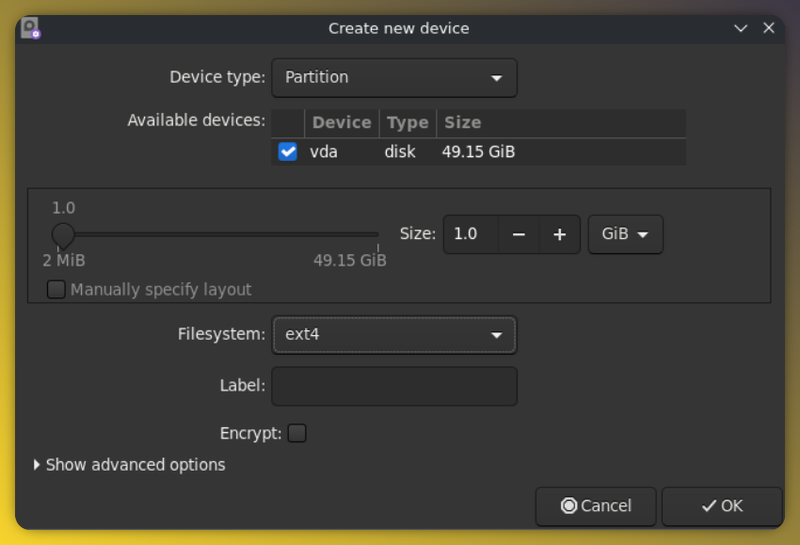
¶ 2. Boot partition
- Size:
1024 MiB(1 GB) - Filesystem:
ext4
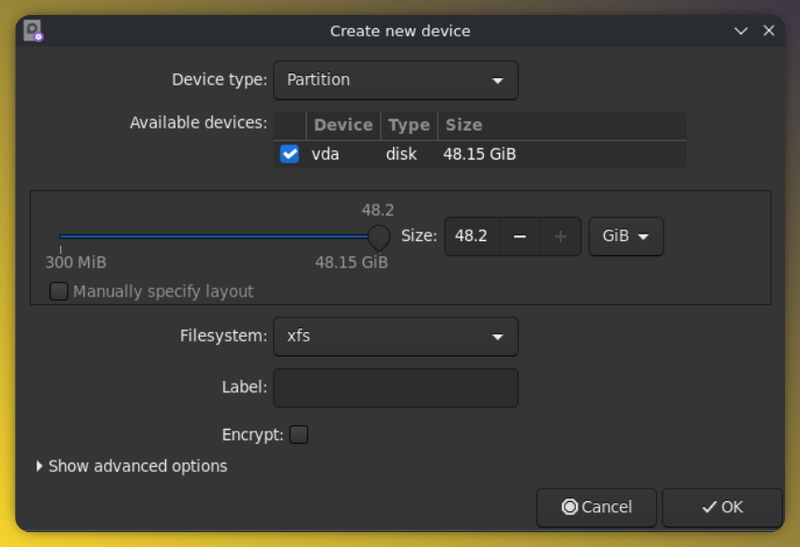
¶ 3. Root partition
- Size: remaining free space (or leave some free space aside if you plan to add a separate Home partition)
- Filesystem:
XFS(recommended),ext4, orBtrfs
¶ 4. (Optional) Home partition
- Size: remaining free space
- Filesystem:
XFS,ext4 - Keeping
/homeon its own partition lets you reinstall or distro-hop later without losing your personal files. - ⚠️ Skip this step if you're using Btrfs subvolumes instead — see below.
¶ Using Btrfs? Read this first (wip)
Unlike ext4 or XFS, Btrfs does not need multiple partitions. Instead of creating separate Root and Home partitions, you create one single Btrfs partition and divide it internally into subvolumes.
Think of subvolumes as flexible, independently-manageable folders that all live inside the same partition and share the same pool of free space — instead of ext4/XFS where you'd have to decide ahead of time exactly how much space / and /home each get.
If you choose Btrfs:
-
Create only one partition for Root (skip the separate Home partition above).
-
During installation, create the following subvolumes and assign them to their mountpoints:
Subvolume Mountpoint @/@home/home@var/var@log/var/log@snapshots/.snapshots -
Each subvolume behaves like its own mount, but space is shared dynamically across all of them — no fixed sizing required.
🌱 Why bother? Splitting things into subvolumes makes it much easier to take snapshots, roll back, or exclude specific folders (like
/home) from backups when using tools like Timeshift or Snapper.
¶ Expected final partition layout
Your disk should now look like this:
- EFI (Windows)
- 16 MB Reserved (Windows)
- NTFS — Windows
C:partition - 512 MiB — new EFI partition
- 1024 MiB — new ext4 partition
- Remaining space — new PikaOS Root partition (XFS, ext4, or Btrfs)
- (Optional) Remaining space — new PikaOS Home partition (XFS, ext4, or Btrfs)
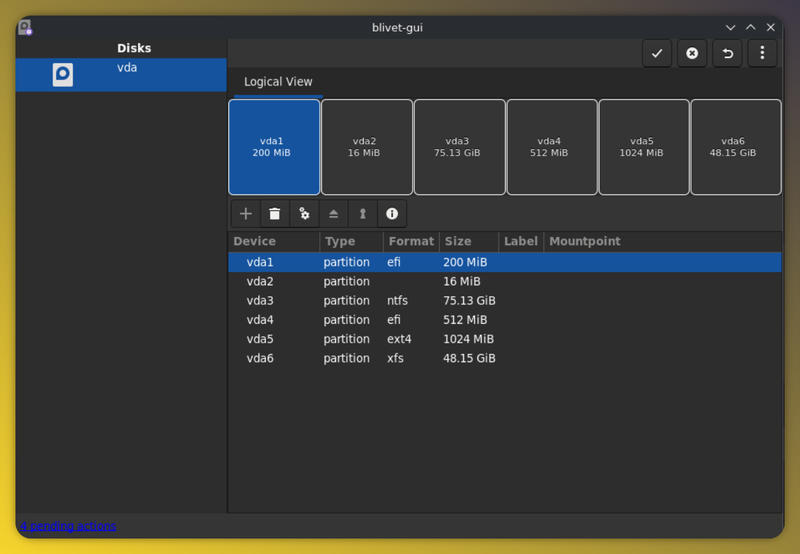
- Click the checkmark (✓) at the top to apply and finalize the changes.
⚠️ This step is irreversible. Double-check your layout before confirming.
- Close the partition manager once finished.
¶ Assign Filesystem Roles
Back in the installer, assign your newly created partitions to their correct roles:
| Role | Partition |
|---|---|
| EFI | Your new 512 MiB partition |
| Boot | Your new 1024 MiB partition |
| Root | Your new large partition |
¶ If you used ext4/XFS with a separate Home partition
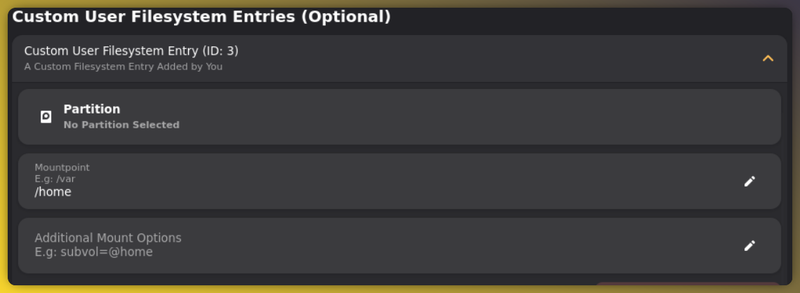
Add a Custom User Filesystem entry

Add your home partition and set the mountpoint to /home
¶ If you used Btrfs
Since Root (and Home) live as subvolumes on the same Btrfs partition, assign that single partition to each mountpoint along with its matching subvolume:
| Mountpoint | Partition | Subvolume |
|---|---|---|
/ |
Your Btrfs partition | @ |
/home |
Your Btrfs partition | @home |
/var |
Your Btrfs partition | @var |
/var/log |
Your Btrfs partition | @log |
/.snapshots |
Your Btrfs partition | @snapshots |
The installer will let you add the subvolumes the the entries right after adding the partition — make sure each row points to the correct subvolume, not just the correct partition.
Then, regardless of filesystem choice:
- Click the orange button to Validate Filesystem Table.
- Confirm you see the green message: "Filesystem Table is Valid!"
¶ Install PikaOS
- Click the orange arrow to proceed.
- Confirm the changes and begin the installation.
- PikaOS will install and automatically add a rEFInd boot entry to your BIOS.
- Once finished, select Reboot System.
¶ Post-Installation Setup
After rebooting, PikaOS will launch its distro setup wizard. Complete the following steps:
- Enter your name, hostname, and user password.
- Set up your Wi-Fi network (skip this if you're using Ethernet).
- Update the system.
- Select your GPU drivers, if needed:
- Mesa Stable for AMD GPUs
- Nvidia Stable for Nvidia GPUs
- Install the Codecs metapackage.
- Install the Gaming metapackage, if desired.
- Reboot.
¶ Booting Into Your New System
After this final reboot, you should be greeted by the rEFInd bootloader, letting you choose between PikaOS and Windows.
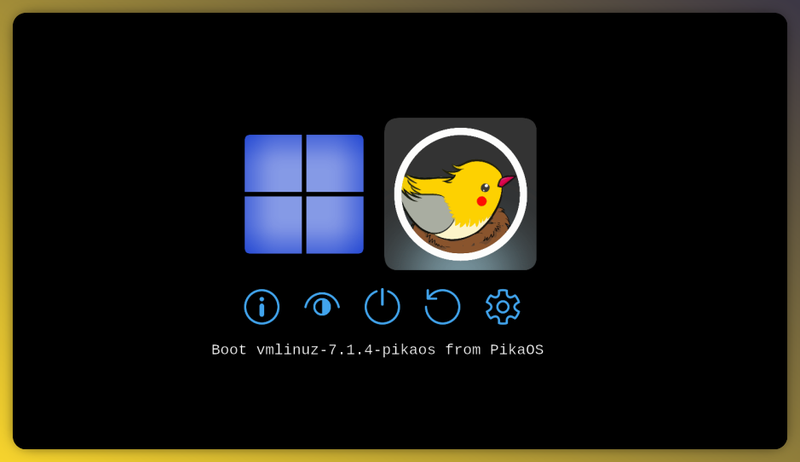
🔧 If rEFInd doesn't appear automatically: Enter your BIOS settings and set rEFInd as the first boot priority.
✅ You're done! You now have PikaOS and Windows installed side by side.